Why phone heat matters for the battery
A lithium-ion battery ages faster the warmer it is. Every hour spent above roughly 35°C permanently takes away a little capacity, and the effect is strongest when the battery is also charging or sitting at a high charge. That is why a phone that is often hot while charging tends to lose battery life sooner than an identical phone kept cool.
Phones protect themselves at extreme temperatures by dimming the screen, slowing down or stopping charging, but by then the battery has already spent time in the danger zone. An overheating alert lets you act earlier, while the fix is as simple as unplugging or closing a game.
What bCare's overheat alert does
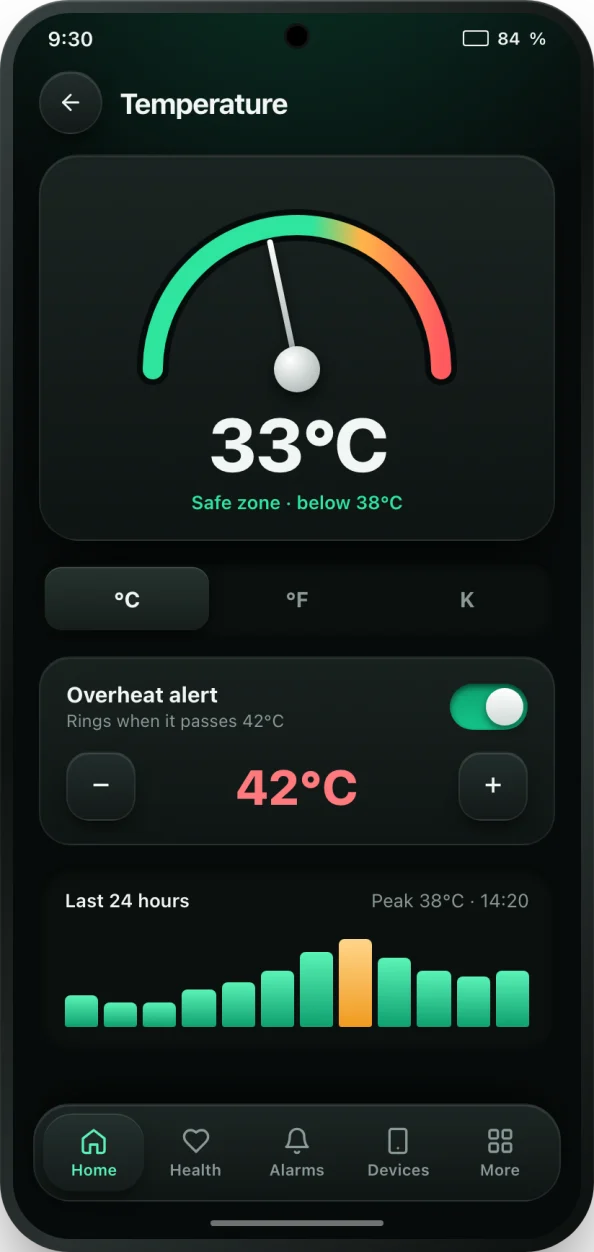
bCare reads the battery temperature that Android reports and shows it live on the Temperature screen, with the safe range marked. While health monitoring is on (free for the first 7 days, then part of PRO) it also keeps a 24-hour temperature chart. When the temperature passes your limit, the overheat alarm rings with the same sound, repeat and snooze options as the other alarms, and a notification tells you the phone is running hot.
The alarm comes with short cool-down steps: unplug the charger and take the phone out of its case, close games, camera, navigation and other heavy apps, move it out of direct sunlight, and turn on airplane mode briefly if it stays hot. Temperatures can be shown in °C, °F or K.
A battery temperature monitor, not just an alarm
The alarm is the loud part, but bCare also works as a quiet battery temperature monitor you can check any time. The Temperature screen shows the current reading on a gauge with the safe range of 15 to 35°C marked, and tells you whether the battery is cool, warm or too hot. A calm notification lets you know when the phone starts running warm, before it reaches your alarm limit. Each charging session in History records its peak temperature, so you can see which charger or habit runs warmest, and the Temperature widget keeps the reading on your home screen.
How to turn on the overheating alert
- Install bCare from Google Play and open it.
- Open the Alarms tab and switch on the Overheat alert.
- Tap it and set the temperature it should ring at. The default of 42°C catches real overheating without false alarms; lower it toward 38 or 40°C if you want an earlier warning.
- Choose the sound, vibration and repeat, then tap Save alarm.
- Run the Alarm reliability check so the alert keeps working in the background.
- Optional: add the Temperature widget to your home screen to see the reading at a glance.
Common reasons a phone overheats
- Fast charging while gaming, streaming or navigating, which stacks two heat sources at once.
- Charging under a pillow, on a bed or in a thick case that traps heat.
- Direct sunlight, a hot car dashboard or a summer day outdoors.
- A weak mobile signal, which makes the radio work harder.
- An app stuck working in the background. Check which apps are draining the battery.
- A charger or cable that is faulty or poorly matched to the phone. A charger speed test shows if one runs hotter than another.
Tips to keep your phone cool
Charge on a hard surface, not on fabric. Take a thick case off during long charges. Avoid gaming while fast charging. Keep the phone out of the sun and out of a parked car. If you charge overnight, a normal charger is gentler than a fast one. bCare's health score counts time spent hot, so you can see on the battery health screen whether the changes are helping.