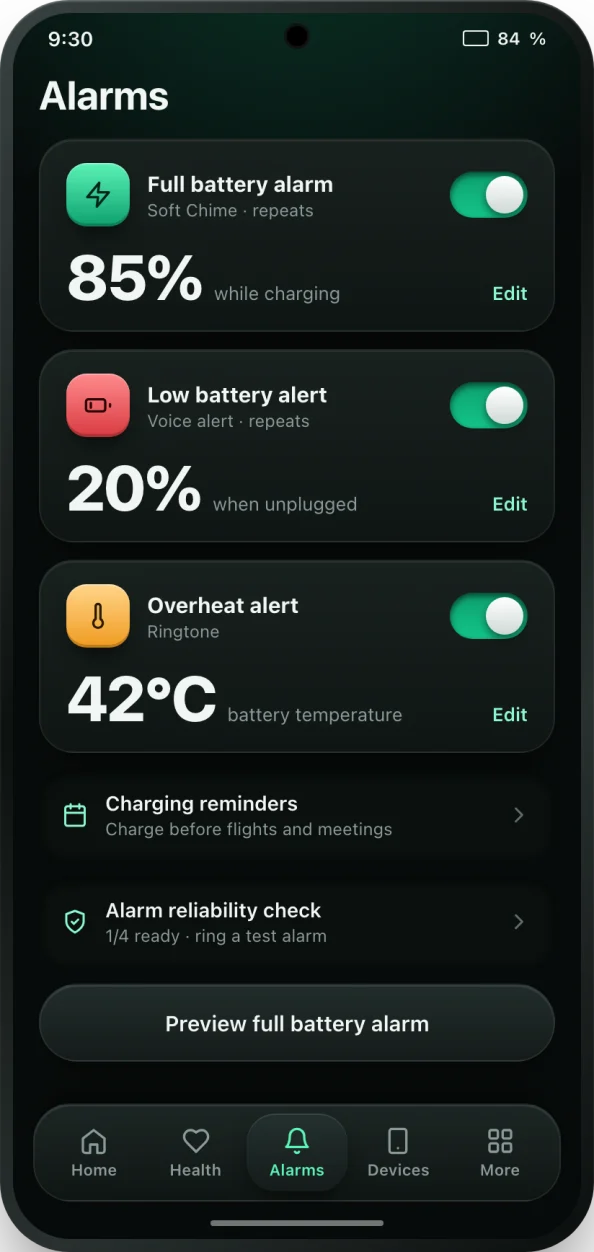
Why a louder low battery warning helps
The built-in warning on most Android phones appears late and disappears quickly. If the phone is in a bag or face down on a desk, you will not see it, and the next thing you notice is a black screen. A low battery alarm app turns that warning into something you can hear from across the room, early enough to do something about it.
There is a battery health reason too. Running a lithium-ion battery very low is one of the habits that wears it faster. Plugging in around 20% keeps the battery out of that stressful bottom range, which is why bCare's low alarm starts at 20% and why the health score keeps count of deep drains.
How to set up the low battery alarm
- Install bCare from Google Play and open it.
- Open the Alarms tab and switch on the Low battery alarm.
- Tap it to edit, then set the level. 20% suits most people; choose 25 or 30% if you are often far from a charger.
- Pick the sound. You can use a ringtone, your phone's alarm sound, a male or female voice alert or your own MP3 or M4A file, plus vibration.
- Choose the repeat and whether it should ring on silent, then tap Save alarm.
- Run the Alarm reliability check so the alarm keeps working when bCare is in the background.
When the battery drops to your level, bCare shows a full-screen alarm with the current charge and a reminder to plug in. Stop it, snooze it for a few minutes, or connect the charger and it stops by itself.
More than one alarm
The low battery alarm works best alongside the battery full alarm. One tells you when to plug in, the other when to unplug, and together they keep your battery in the healthy middle range without you thinking about it. Sound and repeat settings apply to all alarms, so you only set them up once.
If you rely on someone else's phone being reachable, for example a child or an older parent, bCare can also show family phone battery levels and alert you when a linked phone runs low.
When the low alarm is most useful
- Long days out, travel and commutes, when you need the last 20% to get home.
- Gaming, navigation and video calls, which can drain a battery much faster than you expect.
- Older phones whose battery no longer lasts a full day. Check its real condition with the battery health check.
- Phones used as a hotspot, alarm clock or work device that must stay on.
Tips to stretch the last 20%
When the alarm rings and a charger is not close, turn on Android's battery saver, lower the screen brightness and close games, camera and navigation apps. bCare's home screen also lists the settings draining the battery right now, such as brightness and screen timeout, with a quick way to change each one.