Why stop charging at 80 percent?
A lithium-ion battery wears a little every time it is charged, but how fast it wears depends on where it spends its time. The top of the charge range is the most stressful part, especially when the phone is warm. Holding a battery at 100% for hours, for example on the charger overnight, ages it faster than keeping it lower. Stopping at around 80% skips that stressful top slice. You give up a little runtime per charge, and in return the battery keeps more of its capacity over the months and years you own the phone.
The other half of the habit is not running the battery flat. Deep drains below about 20% are also hard on the cell. Together that gives the well known 20 to 80 rule: top up often, stay in the middle, and avoid both extremes when you can.
Can Android stop charging at 80% by itself?
Some phones can. Several manufacturers now include a battery protection or charging limit option, usually under Settings, then Battery. If your phone has one, turn it on; it is the most direct way to cap the charge.
Many Android phones do not have that option, and on others it only works at a fixed level or only overnight. A normal app is not allowed to switch charging off on an unrooted phone, so the reliable alternative is an alarm that tells you when to unplug. That is what bCare does: it watches the level in the background and rings the moment you reach 80%.
How to set an 80% charge alarm in bCare
- Install bCare from Google Play and open it.
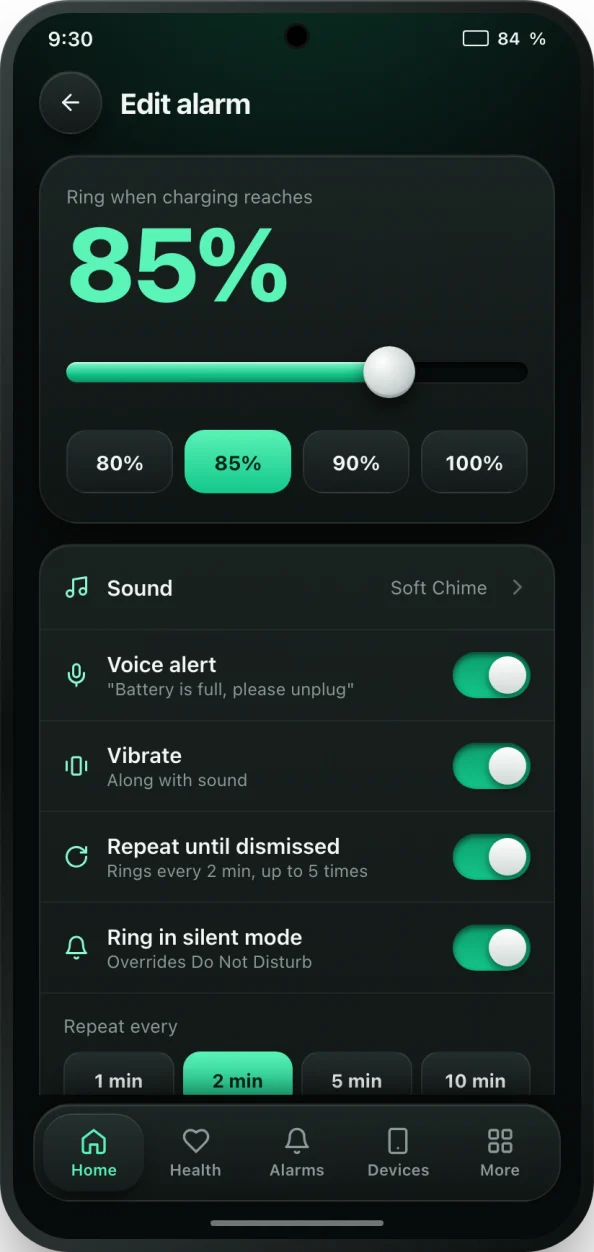
- Go to the Alarms tab and tap the Full battery alarm. It starts at 85%.
- Drag the level down to 80% and pick a sound. A voice alert that says "Battery is full, please unplug" is hard to ignore.
- Choose how it repeats: a few times, or every few minutes until you stop it. Turn on Ring in silent mode if you charge with the phone on silent.
- Tap Save alarm, then run the Alarm reliability check so Android does not stop the alarm in the background.
- Optional: set the Low battery alarm to 20% so you are reminded to plug in before a deep drain.
See whether the habit is working
After you start charging to 80%, bCare's battery health check shows how your habits add up. The health score watches heat, time held at a full charge, deep drains and time spent in the healthy 20 to 80% range. Your charging history lists every session with its start and end level, so you can see at a glance how many charges went all the way to 100%.
Over a few weeks bCare also measures your battery's real capacity in mAh from normal 20 to 80% charges. That means the habit that protects the battery is also the habit that lets bCare measure it accurately.
Practical tips
- Charge to 100% when you need it, before a long trip or a full day away from a charger. The 80% rule is a default, not a law.
- Overnight charging is where most time at 100% happens. If you charge in bed, a repeating 80% alarm or a built-in charging limit helps most.
- Keep it cool. Heat while charging does more harm than an occasional full charge, so take thick cases off and avoid charging under a pillow.
- Fast charging is fine for most phones, but it adds heat. If your phone runs warm, a slower charger at night is gentler.