More than decoration
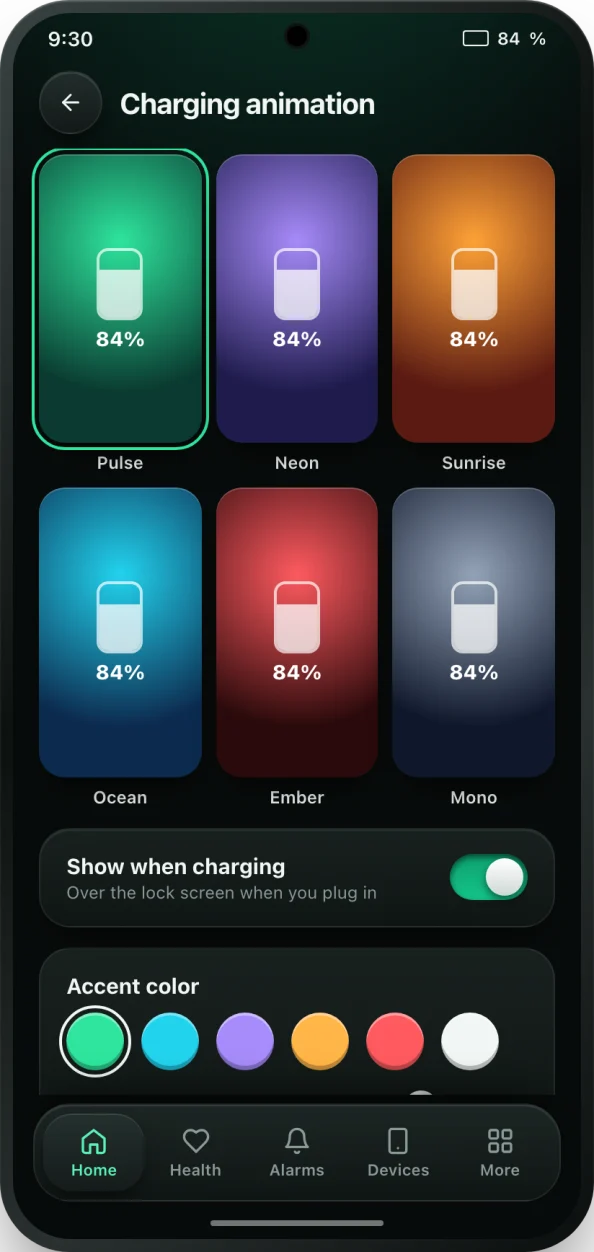
A charging animation is the first thing you see when you plug in, so it is a good place for useful information. bCare's animations show the charge level and an estimate of the time until full, so a quick glance tells you whether the charger is working and how long you have to wait. They also confirm the phone actually started charging, which is handy with a loose cable or a wireless pad you have to line up.
And yes, they look good. Each style is designed to feel calm rather than flashy, and you can match the accent colour to your wallpaper.
The styles
- Pulse: a soft glow that breathes as the phone charges.
- Neon: bright lines with a little more energy.
- Sunrise: warm colours that build as the battery fills.
- Ocean: slow, cool waves.
- Ember: a warm, glowing look.
- Mono: a minimal style for people who like it clean.
Some styles are part of bCare PRO, which also unlocks every animation. On the free plan you can also unlock a style by choosing to watch one short video.
How to set a charging animation
- Install bCare from Google Play and open it.
- Open Charging animation from the tools on the Home screen.
- Browse the styles and tap one to select it. Choose an accent colour below.
- Tap Preview on lock screen to see exactly how it will look.
- Tap Apply. If asked, allow Display over other apps; Android needs it before any app can show a full-screen animation over the lock screen. On Xiaomi phones, also turn on Show on lock screen, Open new windows and Display pop-up windows.
- Make sure Show when charging is on. Plug in to see it.
To turn the animation off, switch off Show when charging. Your alarms and other settings are not affected.
Does a charging animation slow down charging?
Not in any way you would notice. The animation only shows while the screen is on, and the screen turns off on its normal timeout like it always does. The phone keeps charging at the same speed in the background. If you want to save every last bit of energy, simply let the screen time out or turn the animation off.
What really affects charging speed is the charger, the cable, the battery level and the temperature. To see the actual charging current, use bCare's charger speed test.
Pairs well with
The animation tells you the phone is charging; the battery full alarm tells you when to stop. Set the alarm to 80 or 85% and you get a pleasant start to every charge and a clear signal at the end. For the same information without unlocking the phone, add a battery widget to your home screen.