Why Android battery drain is hard to pin down
Android's own battery page shows usage since the last full charge, and on many phones it lumps a lot of activity into "Screen" or "Android system". It also resets every time you charge, so a bad day can disappear before you look. Meanwhile the real causes are usually simple: one app used far more than you think, a setting such as maximum brightness or a long screen timeout, or a radio like GPS or a hotspot left on.
bCare looks at the problem from three angles at once, so you can find the cause instead of guessing.
What bCare shows you
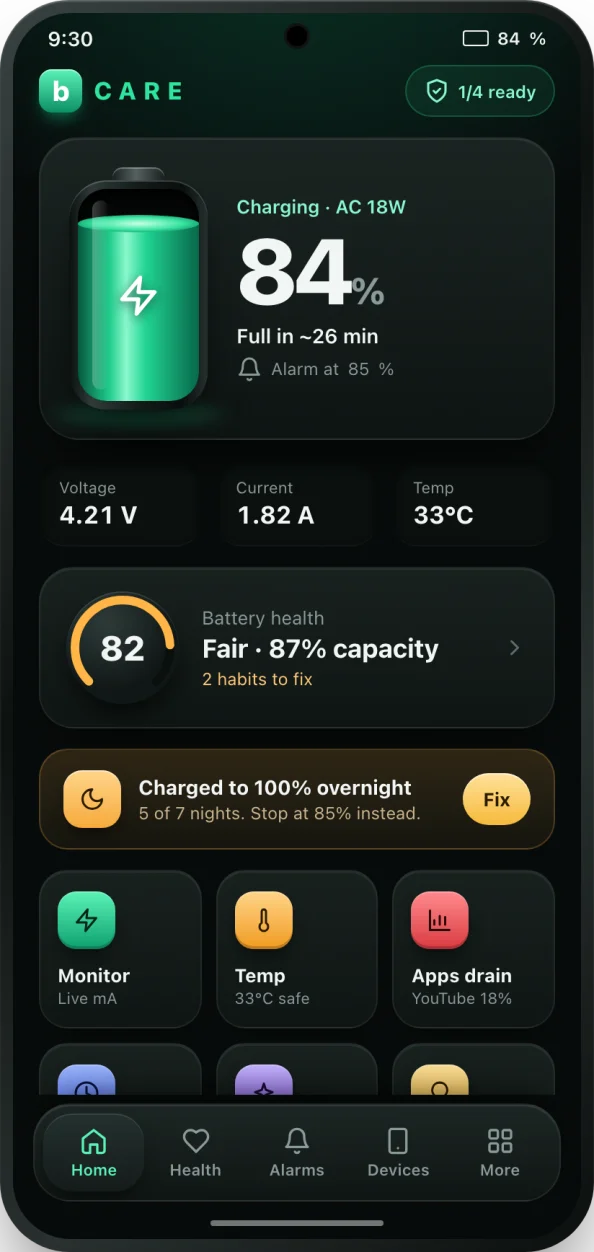
- Apps draining battery: your apps ranked by their share of screen time over the last 7 days, the biggest single driver of battery use on most phones. PRO adds monthly app stats covering the last 30 days.
- High battery usage alerts: when one app is using a lot of power, bCare names it and suggests what to do.
- Fast drain alerts: if the battery is falling noticeably faster than your usual rate, bCare tells you how much faster, in percent per hour.
- Draining your battery now: the settings costing you power at this moment, such as screen brightness, screen timeout, Wi-Fi and Bluetooth, each with a quick way to change it.
- Live monitor: the discharge current in mA, voltage and temperature, updated live, so you can see the effect of closing an app straight away.
How to find what is draining your battery
- Install bCare from Google Play and open it.
- Open the apps view from the tools on the Home screen. bCare asks for Usage Access, an Android permission that lets it rank apps; the data stays on your phone.
- Look at the top three apps. If one of them surprises you, that is your first suspect.
- Go back to Home and check Draining your battery now. Lower brightness or shorten the screen timeout with a tap if they are flagged.
- Leave background monitoring on. If the battery starts draining faster than usual, bCare sends an alert with short steps to fix it.
How to fix an app that drains the battery
Once you know the culprit, the fix is usually quick. Close the app when you are done with it instead of leaving it open. In Android settings, open the app's battery page and restrict its background activity. Turn off notifications and background location for apps that do not need them. If you rarely use it, uninstall it; many apps work just as well in a browser.
For general drain, lower the screen brightness and shorten the screen timeout, close apps you are not using, and switch off GPS, hotspot and Bluetooth when you do not need them. If the phone also feels warm, check the overheat alert, because heat and drain often come from the same busy app.
When it is not an app
If nothing stands out and the battery still empties quickly, the battery itself may be worn. A worn battery holds less charge, so the same day of use takes it lower. bCare's battery health check measures the real capacity in mAh so you can tell the difference. You can also estimate how long a full charge should last with the battery life calculator.