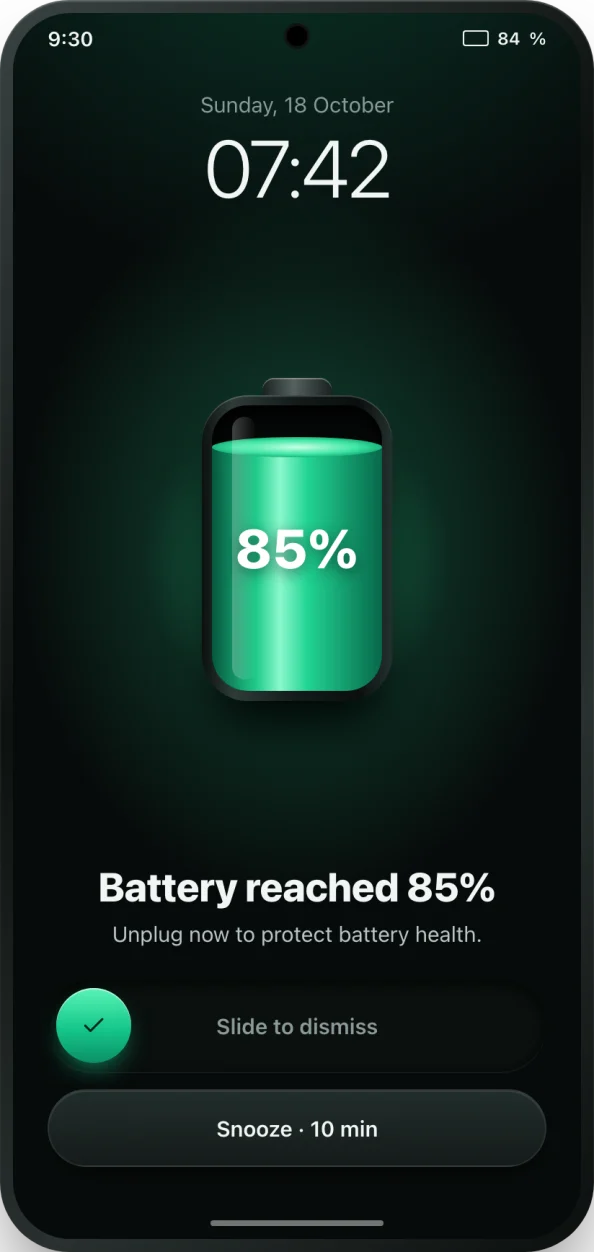
What a battery full alarm does
Android shows a small notification when the battery is full, and many phones show nothing at all until 100%. That is easy to miss, and it comes too late if you want to unplug earlier to protect the battery. A battery full alarm app fixes both problems: it watches the charge level in the background and rings out loud the moment your phone reaches the level you picked.
bCare's full-charge alarm is set to 85% out of the box, because stopping short of 100% is one of the simplest ways to slow battery wear. You can move it to 80%, 90%, 100% or anything in between. When it rings you get a full-screen alarm over the lock screen with a large stop button, a snooze button and the current charge level, so you know exactly why it went off.
How to set an alarm for when the battery is full
- Install bCare from Google Play and open it. Your live battery level shows up straight away.
- Open the Alarms tab and tap the Full battery alarm.
- Drag the level to the charge you want. 85% is a good everyday choice; pick 80% if you want to be extra gentle on the battery.
- Choose a sound: a built-in ringtone, your phone's own alarm sound, a male or female voice alert that says "Battery is full, please unplug", or your own MP3 or M4A file.
- Set the repeat: ring every few minutes up to a number of times, or until you stop it. Turn on vibration and Ring in silent mode if you want it to sound even on silent.
- Tap Save alarm, then run the Alarm reliability check from the Alarms tab. It walks you through notifications, battery optimisation, autostart and a test alarm.
That is all. Plug in as usual. When the battery reaches your level, bCare rings until you unplug, tap stop or snooze it for 5, 10, 15 or 30 minutes.
Why unplugging earlier matters
Lithium-ion batteries age faster when they sit at a very high charge, and faster again when they are warm. A phone left on the charger at 100% for hours spends that whole time in the most stressful state. Unplugging around 80 to 85% keeps the cell in a calmer range and, over months, leaves you with more of the capacity you paid for. You can read more about the habit in our guide to stopping at 80 percent.
Why some charge alarms never ring, and how bCare handles it
Many Android phones aggressively stop background apps to save power. Samsung, Xiaomi, Oppo, Vivo and others each do it a little differently, and an alarm app that gets stopped simply stays quiet. bCare's Alarm reliability check looks at the settings that matter on your phone, tells you which ones are blocking the alarm, and takes you to the right screen to fix each one. It finishes with a test alarm that rings twice to confirm sound, volume and repeat all work.
If the alarm is due while you are driving, Drive mode switches every alarm to vibration only, so you still feel it without a ringtone going off in the car.
Tips for getting the most from it
- Pair the full alarm with a low battery alarm at 20% to keep the battery in the healthy middle range.
- Charging overnight? A few repeats are usually enough; choose until stopped only if you want to wake up and unplug.
- Add the Alarms or Battery widget to your home screen to see the alarm level at a glance.
- Watch the temperature too. A phone that runs hot while charging wears faster, so turn on the overheat alert as well.